

Java Clean Architecture Masterclass

Java Clean Architecture MasterclassNov 20-21

Join

CLIQUE - README

INTRODUCTION

Clique is my dependency free mini CLI framework aimed at beautifying CLI applications in Java.

Clique Hero

Why Clique?

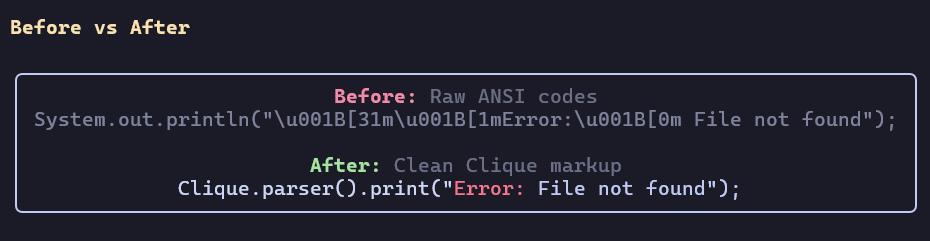
Raw ANSI codes are ugly and hard to read plus Java doesn't have great CLI tooling for ANSI codes:

System.out.println("\u001B[31m\u001B[1mError:\u001B[0m File not found");

Raw Ansi Output

Clique makes it clean:

Clique.parser().print("[blue, bold]Clique is awesome![/]");

Clique Parser Output

Setup

Maven

Add JitPack repository to your pom.xml:

<repositories>
    <repository>
        <id>jitpack.io</id>
        <url>https://jitpack.io</url>
    </repository>
</repositories>

Then add the Clique dependency:

<dependencies>
    <dependency>
        <groupId>com.github.kusoroadeolu</groupId>
        <artifactId>Clique</artifactId>
        <version>v1.2.1</version>
    </dependency>
</dependencies>

Gradle

Add JitPack repository to your build.gradle:

repositories {
    maven { url 'https://jitpack.io' }
}

Then add the dependency:

dependencies {
    implementation 'com.github.kusoroadeolu:Clique:v1.2.1'
}

Manual JAR Installation

If you prefer not to use a build tool:

  1. Clone the repository:
git clone https://github.com/kusoroadeolu/Clique.git
cd Clique
  1. Build the JAR:
javac -d bin src/**/*.java
jar cf clique.jar -C bin .
  1. Add the JAR to your project's classpath or drop it in your lib folder and include it when compiling:
javac -cp clique.jar YourApp.java
java -cp clique.jar:. YourApp

IMPLEMENTATION

StyleBuilder

Clique uses a fluent builder pattern to chain styled strings with each other. If you enjoy using the builder pattern this is for you
You can append styles to a string using append() and print it to the terminal. This resets the terminal style after each append call

Clique.styleBuilder()
      .append("Hello", ColorCode.BLUE, StyleCode.BOLD, StyleCode.UNDERLINE)
      .append("World", ColorCode.RED, StyleCode.DIM , StyleCode.REVERSE_VIDEO)
      .print();    

You can append styles to strings using the stack() method, but it doesn't reset the terminal style. I added this for more flexibility

Clique.styleBuilder()
      .stack("Hello", ColorCode.BLUE, StyleCode.BOLD, StyleCode.UNDERLINE)
      .stack("World", ColorCode.RED, StyleCode.DIM , StyleCode.REVERSE_VIDEO)
      .print();    

You can apply styles to text with format(). This method does not reset the terminal style

String styledText = Clique.styleBuilder().format("This text is red", ColorCode.RED);

You can apply styles to text with formatReset(). This method resets the terminal style

String styledText = Clique.styleBuilder().formatReset("This text is red", ColorCode.RED,StyleCode.BOLD);

You can get the styledText after appending strings by using the get method

String styledText = Clique.styleBuilder()
        .stack("Hello", ColorCode.BLUE, StyleCode.BOLD, StyleCode.UNDERLINE)
        .stack("World", ColorCode.RED, StyleCode.DIM)
        .get(); 

Parser Methods

Quick Overview

Clique supports a markup parsing format for less verbose style building

String str = "[red, bold]Hello [blue, ul]World";
AnsiStringParser parser = Clique.parser(); 
parser.print(str); //This will print `Hello` as red and bold, reset and print `World` as blue and underlined
import com.github.kusoroadeolu.clique.config.ParserConfiguration;

String str = "[red bold]Hello[blue] World"; //Notice there are no commas as the delimiter here
ParserConfiguration configuration = ParserConfiguration
        .immutableBuilder()
        .enableAutoCloseTags() //Auto closes tags for you
        .delimiter(' ') //Set the default delimiter to a space
        .build();
AnsiStringParser configuredParser = Clique.parser()
        .configuration(configuration);

configuredParser.print(str);

Here we can see we set a custom delimiter. This allows for more flexibility for those who don't want to use the default comma delimiter

Basic Parsing

// Parse and return styled string
String styled = Clique.parser().parse("[red, bold]Error:[/] Something went wrong");

// Parse and print directly (convenient shorthand)
Clique.parser().print("[red, bold]Error:[/] Something went wrong");

// Get the original string without markup tags
AnsiStringParser parser = Clique.parser();
parser.parse("[red, bold]Hello[/] World");
String original = parser.getOriginalString(); // Returns "Hello World"

Parser Exceptions

When using strict parsing, Clique can throw two types of exceptions:

UnidentifiedStyleException - Thrown when a style doesn't exist:

ParserConfiguration config = ParserConfiguration.immutableBuilder()
    .enableStrictParsing().build();    
AnsiStringParser parser = Clique.parser().configuration(config);

// This will throw UnidentifiedStyleException because "bol" doesn't exist
parser.parse("[red, bol]Text[/]");

ParseProblemException - Thrown when tags are malformed:

// Nested brackets cause parsing issues
parser.parse("[[[red]]]Text[/]");

Without strict parsing enabled, invalid styles are simply ignored.

Tables

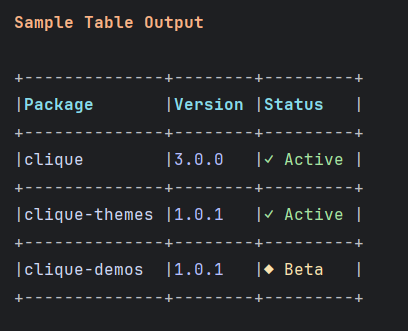
Tables are a feature of Clique which support structured data. For a brief introduction, there are currently 5 tables

  1. Default table
  2. Compact/Minimal table
  3. Box Draw table
  4. Rounded Box Draw table
  5. Markdown table

Clique Tables

All of these tables are abstracted behind the table interface and can be accessed using the Clique facade.

Table t = Clique.table(TableType.COMPACT);
t.addHeaders("Name", "Age", "Class")
                .addRows("John", "25", "Class A")
                .addRows("Doe", "26", "Class B")
t.render(); //Print the table on the terminal

Table Manipulation

Tables support dynamic updates after creation:

Table table = Clique.table(TableType.DEFAULT)
    .addHeaders("Name", "Age", "Status")
    .addRows("Alice", "25", "Active")
    .addRows("Bob", "30", "Inactive");

// Update a specific cell (row 1, column 2)
table.updateCell(1, 2, "Active");

// Remove a specific cell (replaces with null replacement)
table.removeCell(1, 1);

// Remove an entire row (cannot remove headers at row 0)
table.removeRow(1);

// Get table as string instead of printing
String tableString = table.buildTable();
System.out.println(tableString);

Table Configuration

If you want more stylistic choices for your tables, you can use the TableConfiguration class to configure and style your tables NOTE: Markup parsing is enabled by default

BorderStyle style = BorderStyle.builder() 
                .horizontalBorderStyles(ColorCode.CYAN)
                .verticalBorderStyles(ColorCode.MAGENTA)
                .edgeBorderStyles(ColorCode.YELLOW);

TableConfiguration configuration = TableConfiguration
        .immutableBuilder()
        .columnAlignment(0, CellAlign.LEFT)  //Column alignment will always take precedence over table alignment
        .borderStyle(style) //Style class for styling table borders
        .parser(Clique.parser()); //Set a parser for the table to enable markup formatting for rows
        .alignment(CellAlign.CENTER) //Centers each row's values. Rows are left aligned by default
        .padding(2) //The amount of whitespace added to each value in a cell to avoid cramping
        .build();

Table t = Clique.table(TableType.MARKDOWN, configuration)
        .addHeaders("[green, bold]Name[/]", "[green, bold]Age[/]", "[green, bold]Class[/]") //Notice the markup, Clique automatically parses this under the hood
        .addRows("[red]John[/]", "25", "Class A")
        .addRows("[red]Doe[/]", "26", "Class B");
t.render();

Null Handling

When cells are null or removed, Clique replaces them with a configurable value:

TableConfiguration config = TableConfiguration.builder()
    .nullReplacement("N/A");  // Default is empty string

Table table = Clique.table(TableType.DEFAULT, config);
table.addHeaders("Name", "Age", "City")
    .addRows("Alice", null, "NYC");  // null becomes "N/A"

table.render();

This is especially useful when you have incomplete data or when using removeCell().


Boxes

Boxes are single cell objects which support text wrapping, unlike tables. Boxes are best used to display standalone/long text data
Clique currently has 4 box types.

  1. Default box
  2. Classic box
  3. Rounded box
  4. Double line box

All of these boxes are abstracted behind the box interface and can be accessed using the Clique facade.

Box box = Clique.box(BoxType.CLASSIC)
        .width(10)
        .length(10)
        .content("This is my first box");
        
box.render(); //Print the box to the terminal

Box Configuration

Box configuration allows for more stylistic choices to your boxes. It defines how boxes are drawn, styled, its content is aligned, and rendered within the terminal. NOTE: Markup parsing is enabled by default

// Define a colorful border style
BorderStyle style = BorderStyle.immutableBuilder()
     .horizontalBorderStyles(ColorCode.CYAN)
     .verticalBorderStyles(ColorCode.MAGENTA)
     .edgeBorderStyles(ColorCode.YELLOW)
     .build();  

// Build the box configuration
BoxConfiguration config = BoxConfiguration.immutableBuilder()
     .borderStyle(style) 
     .textAlign(TextAlign.CENTER) //Where the text should be aligned in the box
     .centerPadding(3) //The amount of padding from both sides, when the content of the box is centered
     .autoSize(true) // Will automatically resize the box, if the box cannot wrap around the content
     .parser(Clique.parser()) // A parser is provided by default, but you can pass a customized parser here
     .build();

Box b = Clique.box(BOX.DOUBLE_LINE)
        .configuration(config)
        .content("[bold, blue]This is a configured box") //This box will be autoAdjusted, no need for a length or width if you don't need it
        .render();

Box Customization

You can customize your box edges and borders. Right now only the DEFAULT box can be customized. You can get a customizable box using the Clique.customizableBox()

BoxConfiguration config = BoxConfiguration.immutableBuilder()
        .autoSize(true)
        .build();

Box b = Clique.customizableBox(BoxType.DEFAULT, config)
        .customizeEdge('<')
        .customizeVerticalLine('~')
        .content("[red]This is my custom box :)");

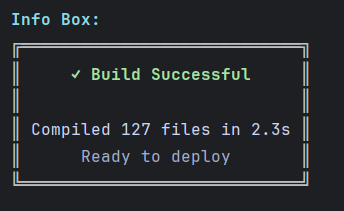
Boxes Output

Indenter

Indenter is a feature that helps you create hierarchical and nested text structures with ease. It's perfect for building tree views, nested lists, file structures, or any content that needs multiple levels of indentation. The indenter is abstracted behind the indenter interface and can be accessed using the Clique facade.

Indenter indenter = Clique.indenter()
        .indent()  // Create first indent level
        .add("Root Level")
        .indent()  // Nest deeper
        .add("Nested Item 1")
        .add("Nested Item 2")
        .unindent()  // Go back up
        .add("Back to Root");

indenter.print();  // Print the indented structure

Basic Usage

The indenter uses a stack-based approach to manage indent levels:

Indenter indenter = Clique.indenter()
        .indent(2, "-")  // Indent 2 spaces with "-" flag
        .add("First item")
        .add("Second item")
        .indent(2, "•")  // Nest deeper with bullet flag
        .add("Nested item")
        .unindent()  // Pop back to previous level
        .add("Back to first level");

indenter.print();

Custom Flags

Flags are the characters/symbols that appear at the start of each indented line. You can use custom flags to create different visual styles:

Indenter indenter = Clique.indenter()
        .indent("-")  // Dash flag
        .add("Item 1")
        .indent("•")  // Bullet flag
        .add("Sub-item")
        .indent("→")  // Arrow flag
        .add("Nested sub-item");

indenter.print();

You can also use the Flag enum for common flags:

Indenter indenter = Clique.indenter()
        .indent(Flag.BULLET)
        .add("Bullet item")
        .indent(Flag.ARROW)
        .add("Arrow item");

Indenter Configuration

Configure your indenter for more control over spacing, default flags, and styling: NOTE: Markup parsing is enabled by default

IndenterConfiguration config = IndenterConfiguration.immutableBuilder()
        .indentLevel(4)  // 4 spaces per indent level
        .defaultFlag("→")  // Default flag when none specified
        .parser(Clique.parser())  // Enable markup parsing
        .build();

Indenter indenter = Clique.indenter(config)
        .indent()
        .add("[blue, bold]Root[/]")
        .indent()
        .add("[green]Nested item[/]");

indenter.print();

Managing Indent Levels

The indenter provides several methods to control indent depth:

Indenter indenter = Clique.indenter();

// Indent with custom level and flag
indenter.indent(3, "•");  // 3 spaces with bullet

// Indent with just a level (uses default flag)
indenter.indent(2);

// Indent with just a flag (uses default level from config)
indenter.indent("→");

// Indent with no arguments (uses defaults)
indenter.indent();

// Go back up one level
indenter.unindent();

// Reset to zero indentation
indenter.resetLevel();

Adding Content

The indenter supports adding single strings, multiple strings via arrays, collections, or any object at the current indent level:

Indenter indenter = Clique.indenter()
        .indent("-");

// Add single strings
indenter.add("Item 1");
indenter.add("Item 2");

// Add multiple strings at once (varargs)
indenter.add("Item 3", "Item 4", "Item 5");

// Add a collection
List<String> items = Arrays.asList("A", "B", "C");
indenter.add(items);

// Add any object (calls toString())
indenter.add(new Date());

indenter.print();

Getting and Clearing Content

Indenter indenter = Clique.indenter()
        .indent("-")
        .add("Item 1")
        .add("Item 2");

// Get the indented string without printing
String result = indenter.get();
System.out.println(result);

// Clear content but keep indent levels
indenter.clear();

// Clear content AND reset indent levels
indenter.flush();

Example: File Tree

IndenterConfiguration config = IndenterConfiguration.immutableBuilder()
        .indentLevel(2).build();

Indenter tree = Clique.indenter()
        .configuration(config)
        .add("[blue, bold]project/[/]")
        .indent("[magenta]├─ ")
        .add("[yellow]src/[/]")
        .indent()
        .add("com.github.kusoroadeolu.Main.java")
        .add("Utils.java")
        .unindent()
        .add("[yellow]test/[/]")
        .indent()
        .add("MainTest.java")
        .unindent()
        .unindent()
        .indent("[magenta]└─ ")
        .add("README.md");

tree.print();

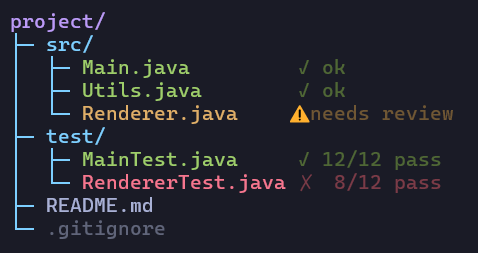
Indenter Output

This produces a clean file tree structure with proper indentation and visual hierarchy.

Quick Tips

Escaping Special Characters

Since [] brackets are used for styling tags, you may need to escape them when displaying literal brackets in your output.

Escaping Brackets

To display literal brackets, use [/] to close the tag interpretation:

// Display literal [123, 456]
Clique.table(TableType.DEFAULT)
    .addHeaders("[123, 456[/]]", "text asd", "another qwe")
    .render();

Pattern: [your text with brackets[/]]

Examples:

"[red, bold[/]]"        // Displays: [red, bold]
"[x, y, z[/]]"          // Displays: [x, y, z]
"Coords: [10, 20[/]]"   // Displays: Coords: [10, 20]

Supported Markup Options

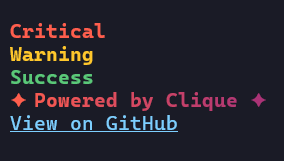
Clique supports text color, background color, and text style tags inside markup strings.


Text Colors

Use standard or bright color names:

Type Example Description
Standard red, green, yellow, blue, magenta, cyan, white, black Basic ANSI text colors
Bright *red, *green, *yellow, *blue, *magenta, *cyan, *white, *black Brighter versions of the standard colors

Example

Clique.parser().print("[red, bold]Error:[/] File not found");
Clique.parser().print("[*blue]Bright blue text[/]");

Background Colors

Prefix color names with bg_ for background colors.
Use *bg_ for bright backgrounds.

Type Example Description
Standard bg_red, bg_blue, bg_yellow, bg_white Standard background colors
Bright *bg_red, *bg_blue, *bg_yellow, *bg_white Bright background colors

Example

Clique.parser().print("[bg_red, white]Alert![/]");
Clique.parser().print("[*bg_blue, *white]Bright background[/]");

Text Styles

Clique supports a range of ANSI text effects:

Style Tag Description
Bold bold Emphasizes text
Dim dim Lowers brightness
Italic italic Slants the text
Underline ul Underlines text
Reverse Video rv Swaps foreground/background colors
Invisible Text inv Hides text (useful for debugging or tricks)
Reset / Resets all styles

Example

Clique.parser().print("[bold, ul]Important[/] [dim]subtle note[/]");
Clique.parser().print("[rv]Inverted colors![/]");

Quick Reference

Category Example Syntax Result
Text Color [red]Text[/] Red text
Bright Color [*blue]Text[/] Bright blue text
Background [bg_yellow, black]Text[/] Black text on yellow background
Bright Background [*bg_green, white]Text[/] White text on bright green background
Style [bold, ul, red]Text[/] Red, bold, and underlined
Reset [red]Text[/] Resets style after closing tag

Using StyleBuilder's get() method

// Build styled text without printing
StyleBuilder sb = Clique.styleBuilder();
String styledText = sb
    .append("Success: ", ColorCode.GREEN, StyleCode.BOLD)
    .append("Operation completed", ColorCode.WHITE)
    .get();

// Use the styled text later
System.out.println(styledText);

Customizable Table Shorthand

Customizable tables are tables whose edges, vertical lines and horizontal lines can be modified. Allows you to make crazy tables
Right now only the default table is customizable. Customizable tables can be accessed through the Clique.customizableTable() method

TableConfiguration configuration = TableConfiguration
        .builder();

// With configuration
Clique.customizableTable(TableType.DEFAULT, configuration)
    .customizeEdge('*')
    .render();

// Without configuration (uses defaults)
Clique.customizableTable(TableType.DEFAULT)
    .customizeEdge('+')
    .customizeHorizontalLine('=')
    .customizeVerticalLine('|')
    .addHeaders("Col1", "Col2")
    .addRows("A", "B")
    .render();

Things to look out for

Terminal Ansi Support

Before applying colors, clique will try to detect if the terminal supports ANSI, if the terminal does, clique will apply ANSI colors
You can also manually force enable ANSI dynamically

Clique.enableCliqueColors(true); // -> Force enables colors regardless of if the terminal supports it
Clique.enableCliqueColors(false); // -> Force disable colors regardless of if the terminal supports it

Try the Demos

Want to see Clique in action? Clone the repo and run the demo applications:

git clone https://github.com/kusoroadeolu/Clique.git
cd Clique

An interactive showcase of colors, gradients, ASCII art, and styling possibilities:

javac src/demo/CliArtGallery.java
java -cp src demo.CliArtGallery

Quiz Game

A colorful Java knowledge quiz with styled tables and real-time scoring:

javac src/demo/QuizGame.java
java -cp src demo.QuizGame

Code Scanner

Analyze your Java projects with styled output showing file stats, complexity, and TODOs:

javac src/demo/CodeScanner.java
java -cp src demo.CodeScanner <path-to-your-project>

Project Explorer

Browse file statistics and project structure with beautiful tables:

javac src/demo/ProjectExplorer.java
java -cp src demo.ProjectExplorer <path-to-your-project>

Note: These demos pom.xmluse package-private visibility. If you want to run them separately, you may need to change them to public class.

Features that will not be implemented

This library is in maintenance mode meaning no breaking features will be added soon

Join libs.tech

...and unlock some superpowers

GitHub

We won't share your data with anyone else.