

Scalene: a Python CPU+GPU+memory profiler with AI-powered optimization proposals
by Emery Berger, Sam Stern, and Juan Altmayer Pizzorno.











(tweet from Ian Ozsvald, author of High Performance Python)

Python Profiler Links to AI to Improve Code Scalene identifies inefficiencies and asks GPT-4 for suggestions, IEEE Spectrum
Episode 172: Measuring Multiple Facets of Python Performance With Scalene, The Real Python podcast
Scalene web-based user interface: https://scalene-gui.github.io/scalene-gui/
About Scalene
Scalene is a high-performance CPU, GPU and memory profiler for Python that does a number of things that other Python profilers do not and cannot do. It runs orders of magnitude faster than many other profilers while delivering far more detailed information. It is also the first profiler ever to incorporate AI-powered proposed optimizations.
AI-powered optimization suggestions
Note
For optimization suggestions, Scalene supports a variety of AI providers, including Amazon Bedrock, Microsoft Azure, OpenAI, and local models via Ollama. To enable AI-powered optimization suggestions from AI providers, you need to select a provider and, if needed, enter your credentials, in the box under "AI Optimization Options". To prefill them from environment variables (such as
OPENAI_API_KEY,ANTHROPIC_API_KEY, orAWS_ACCESS_KEY_ID), view the profile withscalene view --api-keys-from-env; the keys are passed only to your local browser session and are never written into the HTML file.
Once you've entered your key and any other needed data, click on the lightning bolt (⚡) beside any line or the explosion (💥) for an entire region of code to generate a proposed optimization. Click on a proposed optimization to copy it to the clipboard.
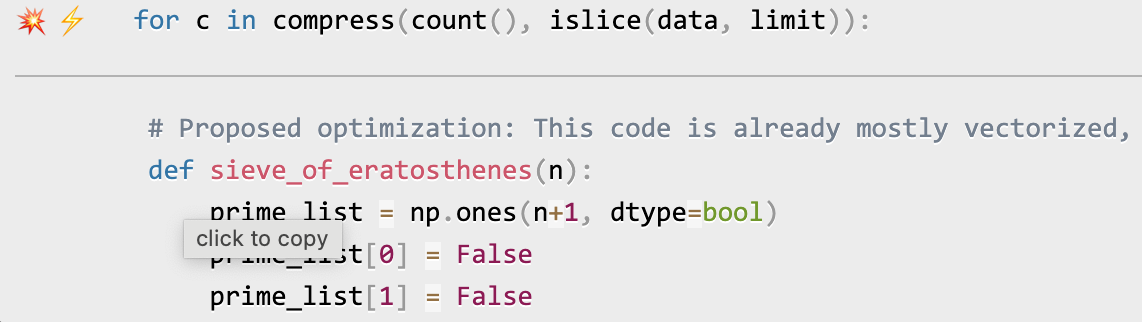
You can click as many times as you like on the lightning bolt or explosion, and it will generate different suggested optimizations. Your mileage may vary, but in some cases, the suggestions are quite impressive (e.g., order-of-magnitude improvements).
Quick Start
Installing Scalene:
python3 -m pip install -U scalene
or
conda install -c conda-forge scalene
Using Scalene:
After installing Scalene, you can use Scalene at the command line, or as a Visual Studio Code extension.
Using the Scalene VS Code Extension:
First, install the Scalene extension from the VS Code Marketplace or by searching for it within VS Code by typing Command-Shift-X (Mac) or Ctrl-Shift-X (Windows). Once that's installed, click Command-Shift-P or Ctrl-Shift-P to open the Command Palette. Then select "Scalene: AI-powered profiling..." (you can start typing Scalene and it will pop up if it's installed). Run that and, assuming your code runs for at least a second, a Scalene profile will appear in a webview.
Commonly used command-line options:
Scalene uses a verb-based command structure with two main commands: run (to profile) and view (to display results).
# Profile a program (saves to scalene-profile.json)
scalene run your_prog.py
python3 -m scalene run your_prog.py              # equivalent alternative

# View a profile
scalene view                                     # open profile in browser
scalene view --cli                               # view in terminal
scalene view --html                              # save to scalene-profile.html
scalene view --standalone                        # save as self-contained HTML

# Common profiling options
scalene run --cpu-only your_prog.py              # only profile CPU (faster)
scalene run -o results.json your_prog.py         # custom output filename
scalene run -c config.yaml your_prog.py          # load options from config file

# Pass arguments to your program (use --- separator)
scalene run your_prog.py --- --arg1 --arg2

# Get help
scalene --help                                   # main help
scalene run --help                               # profiling options
scalene run --help-advanced                      # advanced profiling options
scalene view --help                              # viewing options
Using a YAML configuration file:
You can store Scalene options in a YAML configuration file and load them with -c or --config:
scalene run -c scalene.yaml your_prog.py
Example scalene.yaml:
# Output options
outfile: my-profile.json

# Profiling mode (use only one)
cpu-only: true              # CPU profiling only (faster)
# gpu: true                 # Include GPU profiling
# memory: true              # Include memory profiling

# Filter what gets profiled
profile-only: "mypackage,mymodule"    # Only profile these paths
profile-exclude: "tests,venv"          # Exclude these paths
profile-all: false                     # Profile all code, not just target

# Performance tuning
cpu-percent-threshold: 1     # Min CPU% to report (default: 1)
cpu-sampling-rate: 0.01      # Sampling interval in seconds
malloc-threshold: 100        # Min allocations to report

# Other options
use-virtual-time: false      # Measure CPU time only (not I/O)
stacks: true                 # Collect stack traces (default: true)
memory-leak-detector: true   # Detect likely memory leaks
Command-line arguments override config file settings.
Using Scalene programmatically in your code:
Invoke using scalene as above and then:
from scalene import scalene_profiler

# Turn profiling on
scalene_profiler.start()

# your code

# Turn profiling off
scalene_profiler.stop()
from scalene.scalene_profiler import enable_profiling

with enable_profiling():
    # do something
Using Scalene to profile only specific functions via @profile:
Just preface any functions you want to profile with the @profile decorator and run it with Scalene:
# do not import profile!

@profile
def slow_function():
    import time
    time.sleep(3)
Web-based GUI
Scalene has both a CLI and a web-based GUI (demo here).
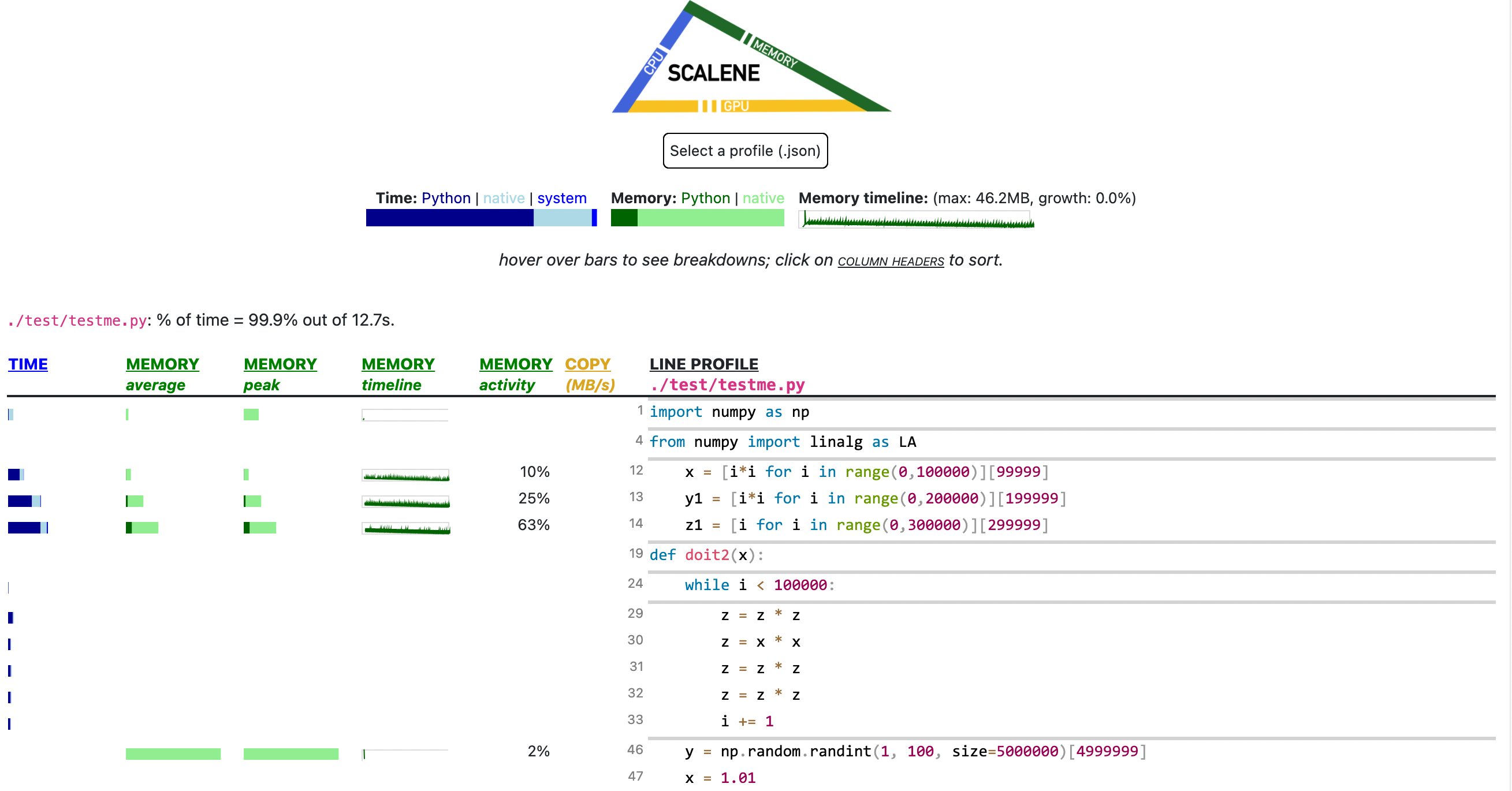
By default, once Scalene has profiled your program, it will open a tab in a web browser with an interactive user interface (all processing is done locally). Hover over bars to see breakdowns of CPU and memory consumption, and click on underlined column headers to sort the columns. The GUI works fully offline with no internet connection required.
Use scalene view --standalone to generate a completely self-contained HTML file with all assets embedded, perfect for sharing or archiving.
Scalene Overview
Scalene talk (PyCon US 2021)
This talk presented at PyCon 2021 walks through Scalene's advantages and how to use it to debug the performance of an application (and provides some technical details on its internals). We highly recommend watching this video!
Fast and Accurate
-
Scalene is fast. It uses sampling instead of instrumentation or relying on Python's tracing facilities. Its overhead is typically no more than 10-20% (and often less).
-
Scalene is accurate. We tested CPU profiler accuracy and found that Scalene is among the most accurate profilers, correctly measuring time taken.

- Scalene performs profiling at the line level and per function, pointing to the functions and the specific lines of code responsible for the execution time in your program.
CPU profiling
- Scalene separates out time spent in Python from time in native code (including libraries). Most Python programmers aren't going to optimize the performance of native code (which is usually either in the Python implementation or external libraries), so this helps developers focus their optimization efforts on the code they can actually improve.
- Scalene highlights hotspots (code accounting for significant percentages of CPU time or memory allocation) in red, making them even easier to spot.
- Scalene also separates out system time, making it easy to find I/O bottlenecks.
GPU profiling
- Scalene reports GPU time (currently limited to NVIDIA-based systems).
Memory profiling
- Scalene profiles memory usage. In addition to tracking CPU usage, Scalene also points to the specific lines of code responsible for memory growth. It accomplishes this via an included specialized memory allocator.
- Scalene separates out the percentage of memory consumed by Python code vs. native code.
- Scalene produces per-line memory profiles.
- Scalene identifies lines with likely memory leaks.
- Scalene profiles copying volume, making it easy to spot inadvertent copying, especially due to crossing Python/library boundaries (e.g., accidentally converting
numpyarrays into Python arrays, and vice versa).
Async profiling
Scalene attributes wall-clock await time to the exact line where the
coroutine is suspended, alongside the mean and peak number of
coroutines waiting concurrently on that line. This makes it easy to spot
serialized I/O (long await, low concurrency) versus genuinely-parallel
fan-out (long await, high concurrency). The await column in the GUI
draws a clockwise pie wedge per line; bigger wedges mean more time spent
suspended on that await.
Async profiling is on by default; pass --no-async to disable it.
Overhead on non-async code is negligible (one frozenset lookup per
signal, and sys.monitoring callbacks never fire when no coroutines
are running).

Stack views (call stacks, memory flame chart, timeline)
When Scalene is run with --stacks (the default — pass --no-stacks
to disable), it captures stitched Python + native (C/C++) stacks at
every CPU and allocation sample, and presents them three ways in the
GUI:
-
Call stacks — a flame chart of the top stitched stacks across the whole run. Python frames are clickable to jump to source. Native frames are demangled and shown alongside Python frames in the same picture, so you can see exactly which library call is on the hot path.

-
Memory stacks — a memory-weighted flame chart where frame width is proportional to MB allocated along that call path (not sample count). Useful for finding which call paths are responsible for a program's memory footprint, especially when allocations come from deep inside a library.

-
Timeline — an icicle/time-series view of the same stitched stacks laid out left-to-right by wall-clock time, with tracks at the top marking GC, I/O, and GIL activity. Coroutines appear as
[await] task_nameframes so you can see when each task ran versus waited.
All three views are collapsible and resizable; expand them via the disclosure triangles at the bottom of the GUI.
Other features
- Scalene can produce reduced profiles (via
--reduced-profile) that only report lines that consume more than 1% of CPU or perform at least 100 allocations. - Scalene supports
@profiledecorators to profile only specific functions. - When Scalene is profiling a program launched in the background (via
&), you can suspend and resume profiling. - Scalene supports free-threaded Python (3.13t / 3.14t) with full CPU + memory profiling.
- Scalene's GUI is fully offline / air-gapped — assets are vendored
and
scalene view --standaloneproduces a single self-contained HTML file you can email or archive.
Comparison to Other Profilers
Performance and Features
Below is a table comparing the performance and features of various profilers to Scalene.
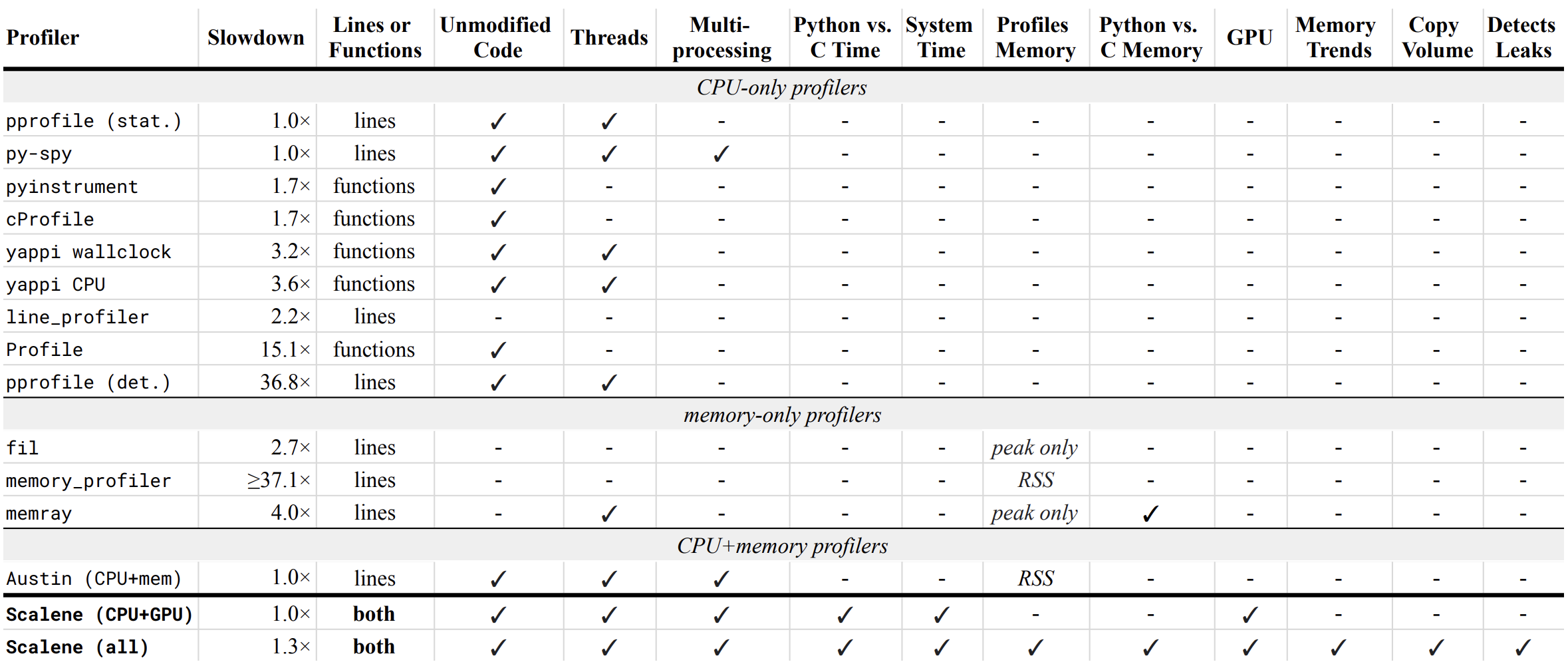
- Slowdown: the slowdown when running a benchmark from the Pyperformance suite. Green means less than 2x overhead. Scalene's overhead is just a 35% slowdown.
Scalene has all of the following features, many of which only Scalene supports:
- Lines or functions: does the profiler report information only for entire functions, or for every line -- Scalene does both.
- Unmodified Code: works on unmodified code.
- Threads: supports Python threads.
- Multiprocessing: supports use of the
multiprocessinglibrary -- Scalene only - Python vs. C time: breaks out time spent in Python vs. native code (e.g., libraries) -- Scalene only
- System time: breaks out system time (e.g., sleeping or performing I/O) -- Scalene only
- Profiles memory: reports memory consumption per line / function
- GPU: reports time spent on an NVIDIA GPU (if present) -- Scalene only
- Memory trends: reports memory use over time per line / function -- Scalene only
- Copy volume: reports megabytes being copied per second -- Scalene only
- Detects leaks: automatically pinpoints lines responsible for likely memory leaks -- Scalene only
- Async /
awaitprofiling: per-line wall-clock attribution of suspended coroutine time, with mean and peak concurrency -- Scalene only - Stitched Python + native stacks: flame charts and a wall-clock timeline that combine Python and C/C++ frames in one picture -- Scalene only
Output
If you include the --cli option, Scalene prints annotated source code for the program being profiled
(as text, JSON (--json), or HTML (--html)) and any modules it
uses in the same directory or subdirectories (you can optionally have
it --profile-all and only include files with at least a
--cpu-percent-threshold of time). Here is a snippet from
pystone.py.
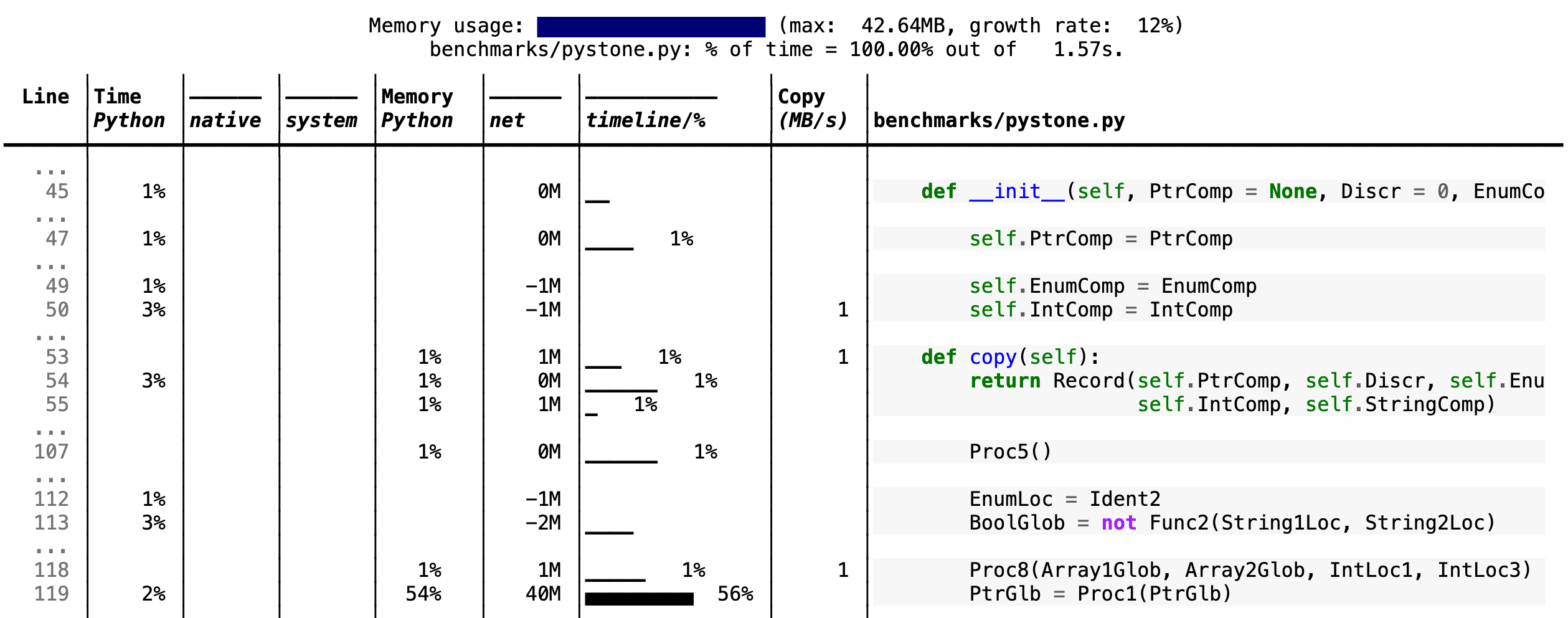
- Memory usage at the top: Visualized by "sparklines", memory consumption over the runtime of the profiled code.
- "Time Python": How much time was spent in Python code.
- "native": How much time was spent in non-Python code (e.g., libraries written in C/C++).
- "system": How much time was spent in the system (e.g., I/O).
- "GPU": (not shown here) How much time spent on the GPU, if your system has an NVIDIA GPU installed.
- "Memory Python": How much of the memory allocation happened on the Python side of the code, as opposed to in non-Python code (e.g., libraries written in C/C++).
- "net": Positive net memory numbers indicate total memory allocation in megabytes; negative net memory numbers indicate memory reclamation.
- "timeline / %": Visualized by "sparklines", memory consumption generated by this line over the program runtime, and the percentages of total memory activity this line represents.
- "Copy (MB/s)": The amount of megabytes being copied per second (see "About Scalene").
Scalene
The following command runs Scalene on a provided example program.
scalene test/testme.py
Click to see all Scalene's options (available by running with --help)
% scalene --help
Scalene: a high-precision CPU and memory profiler, version 1.5.51 (2025.01.29)
https://github.com/plasma-umass/scalene

commands:
  run     Profile a Python program (saves to scalene-profile.json)
  view    View an existing profile in browser or terminal

examples:
  % scalene run your_program.py              # profile, save to scalene-profile.json
  % scalene view                             # view scalene-profile.json in browser
  % scalene view --cli                       # view profile in terminal

in Jupyter, line mode:
  %scrun [options] statement

in Jupyter, cell mode:
  %%scalene [options]
   your code here

% scalene run --help
Profile a Python program with Scalene.

examples:
  % scalene run prog.py                 # profile, save to scalene-profile.json
  % scalene run -o my.json prog.py      # save to custom file
  % scalene run --cpu-only prog.py      # profile CPU only (faster)
  % scalene run -c scalene.yaml prog.py # load options from config file
  % scalene run prog.py --- --arg       # pass args to program
  % scalene run --help-advanced         # show advanced options

options:
  -h, --help            show this help message and exit
  -o, --outfile OUTFILE output file (default: scalene-profile.json)
  --cpu-only            only profile CPU time (no memory/GPU)
  -c, --config FILE     load options from YAML config file
  --help-advanced       show advanced options

% scalene run --help-advanced
Advanced options for scalene run:

background profiling:
  Use --off to start with profiling disabled, then control it from another terminal:
    % scalene run --off prog.py          # start with profiling off
    % python3 -m scalene.profile --on  --pid <PID>   # resume profiling
    % python3 -m scalene.profile --off --pid <PID>   # suspend profiling

options:
  --profile-all         profile all code, not just the target program
  --profile-only PATH   only profile files containing these strings (comma-separated)
  --profile-exclude PATH exclude files containing these strings (comma-separated)
  --profile-system-libraries  profile Python stdlib and installed packages (default: skip)
  --gpu                 profile GPU time and memory
  --memory              profile memory usage
  --stacks              collect stack traces (default: on)
  --no-stacks           disable stack-trace collection
  --profile-interval N  output profiles every N seconds (default: inf)
  --use-virtual-time    measure only CPU time, not I/O or blocking
  --cpu-percent-threshold N  only report lines with at least N% CPU (default: 1%)
  --cpu-sampling-rate N CPU sampling rate in seconds (default: 0.01)
  --allocation-sampling-window N  allocation sampling window in bytes
  --malloc-threshold N  only report lines with at least N allocations (default: 100)
  --program-path PATH   directory containing code to profile
  --memory-leak-detector  EXPERIMENTAL: report likely memory leaks
  --on                  start with profiling on (default)
  --off                 start with profiling off

% scalene view --help
View an existing Scalene profile.

examples:
  % scalene view                    # open in browser
  % scalene view --cli              # view in terminal
  % scalene view --html             # save to scalene-profile.html
  % scalene view --standalone       # save as single self-contained HTML file
  % scalene view myprofile.json     # open specific profile in browser
  % scalene view --api-keys-from-env  # prefill AI API keys from env vars

options:
  -h, --help     show this help message and exit
  --cli          display profile in the terminal
  --html         save to scalene-profile.html (no browser)
  --standalone   save as a single self-contained HTML file with all
                 assets embedded (implies --html)
  -r, --reduced  only show lines with activity (--cli mode)
  --api-keys-from-env
                 prefill AI provider API keys from environment variables;
                 served only to the local browser, never written to HTML
Scalene with Jupyter
Instructions for installing and using Scalene with Jupyter notebooks
This notebook illustrates the use of Scalene in Jupyter.
Installation:
!pip install scalene
%load_ext scalene
Line mode:
%scrun [options] statement
Cell mode:
%%scalene [options]
code...
code...
Installation
Using pip (Mac OS X, Linux, Windows, and WSL2)
Scalene is distributed as a pip package and works on Mac OS X, Linux (including Ubuntu in Windows WSL2) and Windows platforms.
Note for Windows users
Starting with Scalene 2.0, Windows supports full memory profiling. If you encounter issues, ensure you have the Visual C++ Redistributable installed. If building from source, you will need Visual C++ Build Tools and CMake.
You can install it as follows:
% pip install -U scalene
or
% python3 -m pip install -U scalene
You may need to install some packages first.
See https://stackoverflow.com/a/19344978/4954434 for full instructions for all Linux flavors.
For Ubuntu/Debian:
% sudo apt install git python3-all-dev
Using conda (Mac OS X, Linux, Windows, and WSL2)
% conda install -c conda-forge scalene
Scalene is distributed as a conda package and works on Mac OS X, Linux (including Ubuntu in Windows WSL2) and Windows platforms.
Note for Windows users
Starting with Scalene 2.0, Windows supports full memory profiling. If you encounter issues, ensure you have the Visual C++ Redistributable installed.
On ArchLinux
You can install Scalene on Arch Linux via the AUR
package. Use your favorite AUR helper, or
manually download the PKGBUILD and run makepkg -cirs to build. Note that this will place
libscalene.so in /usr/lib; modify the below usage instructions accordingly.
Frequently Asked Questions
Can I use Scalene with PyTest?
A: Yes! You can run it as follows (for example):
scalene run -m pytest your_test.py
or
python3 -m scalene run -m pytest your_test.py
Is there any way to get shorter profiles or do more targeted profiling?
A: Yes! There are several options:
- Use
--reduced-profileto include only lines and files with memory/CPU/GPU activity. - Use
--profile-onlyto include only filenames containing specific strings (as in,--profile-only foo,bar,baz). - Decorate functions of interest with
@profileto have Scalene report only those functions. - Turn profiling on and off programmatically by importing Scalene profiler (
from scalene import scalene_profiler) and then turning profiling on and off viascalene_profiler.start()andscalene_profiler.stop(). By default, Scalene runs with profiling on, so to delay profiling until desired, use the--offcommand-line option (scalene run --off yourprogram.py).
How do I run Scalene in PyCharm?
A: In PyCharm, you can run Scalene at the command line by opening the terminal at the bottom of the IDE and running a Scalene command (e.g., scalene run <your program>). Then use scalene view --html to generate an HTML file (scalene-profile.html) that you can view in the IDE.
How do I use Scalene with Django?
A: Pass in the --noreload option (see https://github.com/plasma-umass/scalene/issues/178).
Does Scalene work with gevent/Greenlets?
A: Yes! Put the following code in the beginning of your program, or modify the call to monkey.patch_all as below:
from gevent import monkey
monkey.patch_all(thread=False)
How do I use Scalene with PyTorch on the Mac?
A: Scalene works with PyTorch version 1.5.1 on Mac OS X. There's a bug in newer versions of PyTorch (https://github.com/pytorch/pytorch/issues/57185) that interferes with Scalene (discussion here: https://github.com/plasma-umass/scalene/issues/110), but only on Macs.
Technical Information
For details about how Scalene works, please see the following paper, which won the Jay Lepreau Best Paper Award at OSDI 2023: Triangulating Python Performance Issues with Scalene. (Note that this paper does not include information about the AI-driven proposed optimizations.)
To cite Scalene in an academic paper, please use the following:
@inproceedings{288540,
author = {Emery D. Berger and Sam Stern and Juan Altmayer Pizzorno},
title = {Triangulating Python Performance Issues with {S}calene},
booktitle = {{17th USENIX Symposium on Operating Systems Design and Implementation (OSDI 23)}},
year = {2023},
isbn = {978-1-939133-34-2},
address = {Boston, MA},
pages = {51--64},
url = {https://www.usenix.org/conference/osdi23/presentation/berger},
publisher = {USENIX Association},
month = jul
}
Success Stories
If you use Scalene to successfully debug a performance problem, please add a comment to this issue!
Acknowledgements
Logo created by Sophia Berger.
This material is based upon work supported by the National Science Foundation under Grant No. 1955610. Any opinions, findings, and conclusions or recommendations expressed in this material are those of the author(s) and do not necessarily reflect the views of the National Science Foundation.