

Datalab
State of the Art models for Document Intelligence






Marker
Marker converts documents to markdown, JSON, chunks, and HTML quickly and accurately.
- Converts PDF, image, PPTX, DOCX, XLSX, HTML, EPUB files in all languages
- Formats tables, forms, equations, inline math, links, references, and code blocks
- Extracts and saves images
- Removes headers/footers/other artifacts
- Extensible with your own formatting and logic
- Optionally boost accuracy with LLMs (and your own prompt)
- Works on GPU, CPU, or MPS
Try Datalab's Managed Platform
Our managed platform runs a version of our latest open source model, Chandra — higher accuracy than Marker, with zero data retention by default, SOC 2 Type 2, and custom BAAs.
If you have high volume workloads, we offer a batch processing service that has processed 1B+ pages per week — we manage the infrastructure so your workloads finish on time.
Get started with $5 in free credits — sign up.
Performance
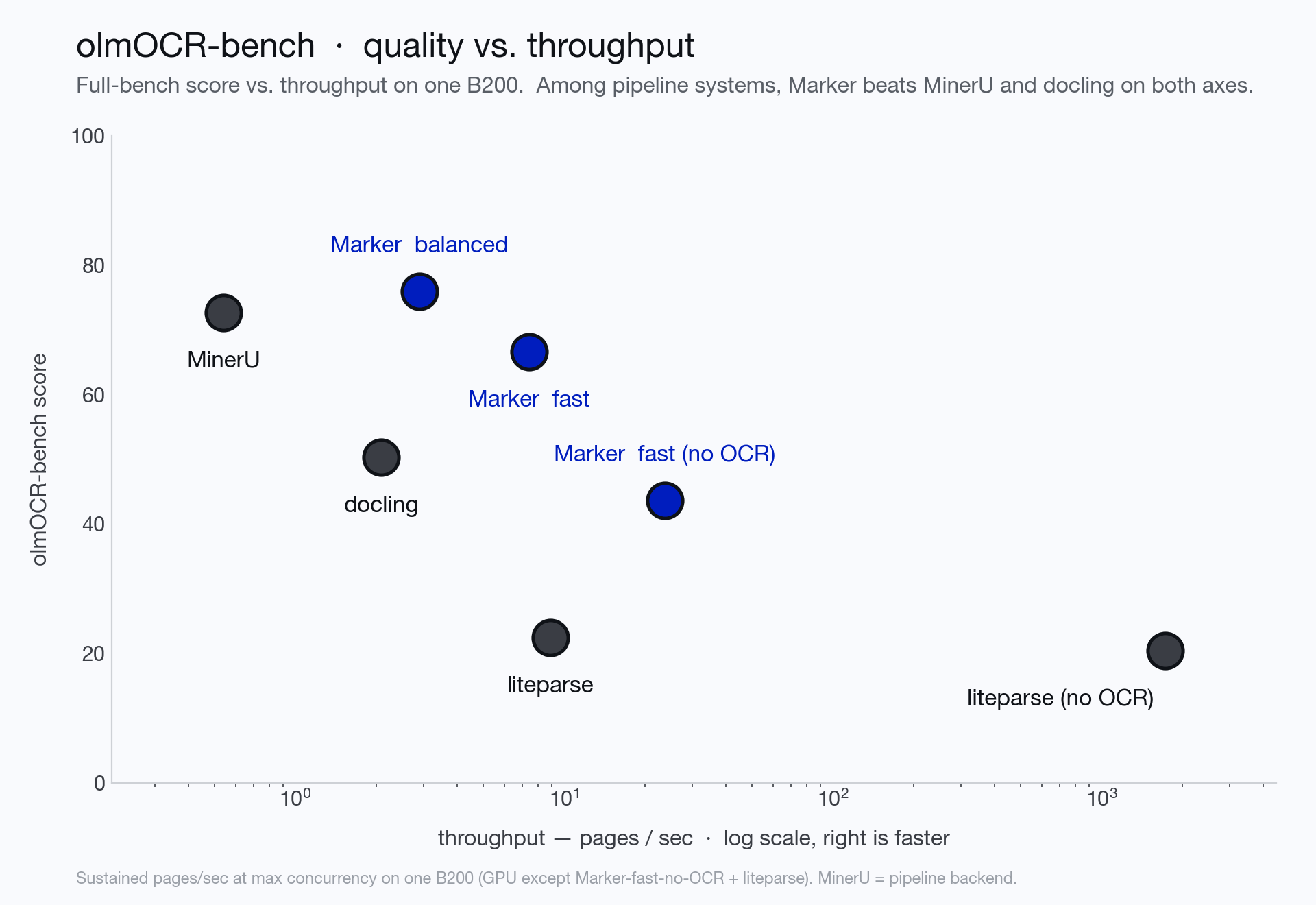
We measure marker on olmocr-bench, a third-party benchmark of 1,403 PDFs with tests covering math, tables, multi-column layout, scans, and hard edge cases. Balanced mode scores 76.0% overall — 83.5% on born-digital PDFs — ahead of MinerU and docling and within range of much larger VLMs, while fast mode runs the layout + text-layer path far cheaper (and a no-OCR mode goes faster still). Scores are the olmocr-bench overall (macro-average across the 8 categories).
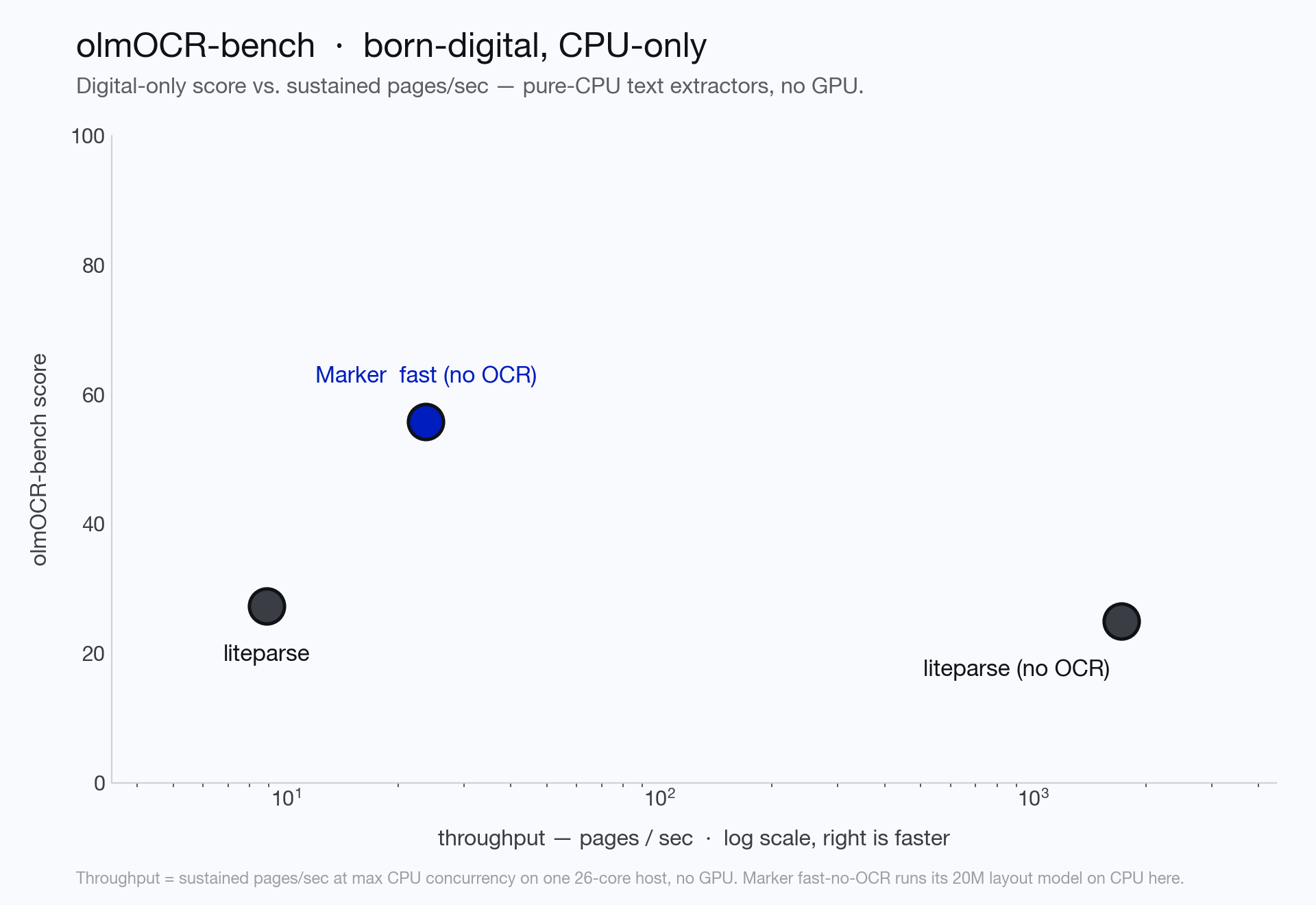
See below for the full per-category scores, the competitive comparison, and instructions on how to run your own benchmarks.
Hybrid Mode
For the highest accuracy, pass the --use_llm flag to use an LLM alongside marker. This will do things like merge tables across pages, handle inline math, format tables properly, and extract values from forms. It works with Gemini, Claude, OpenAI-compatible, Azure, Vertex, OpenRouter, or Ollama models. By default, it uses gemini-3.5-flash. See below for details.
Examples
| File type | Markdown | JSON | |
|---|---|---|---|
| Think Python | Textbook | View | View |
| Switch Transformers | arXiv paper | View | View |
| Multi-column CNN | arXiv paper | View | View |
Commercial usage
Our code is licensed under Apache 2.0 — free to use, including commercially. Our model weights use a modified AI Pubs Open Rail-M license (free for research, personal use, and startups under $5M funding/revenue). For commercial use of the model weights beyond that, visit our pricing page here.
Community
Discord is where we discuss future development.
Installation
You'll need python 3.10+ and PyTorch.
Install with:
pip install marker-pdf
If you want to use marker on documents other than PDFs, you will need to install additional dependencies with:
pip install marker-pdf[full]
Inference backend prerequisites
Surya auto-spawns the server on first use, and you need vllm (NVIDIA GPU) or llama.cpp (CPU / Apple Silicon):
- NVIDIA GPU: Docker plus the NVIDIA Container Toolkit.
- CPU / Apple Silicon: the
llama-serverbinary from llama.cpp:brew install llama.cpp # macOS # or grab a release from https://github.com/ggml-org/llama.cpp/releases
Usage
First, some configuration:
- Mode (
--mode balanced|fast; defaults by device —balancedon GPU,faston CPU/MPS):balanced(best on a GPU) uses the surya VLM for layout, OCRs inline math, and re-OCRs the whole page whenever any of its embedded text is bad — highest quality.fast(optimized for CPU) uses the lightweight rf-detr layout detector, extracts text with pdftext, and keeps VLM use minimal: equations, surgical block-level repair of individual garbled/empty blocks, and a single full-page pass only for pages that are scanned or mostly bad. A clean digital document without equations never starts the VLM server.- Tables are reconstructed from the PDF text layer in both modes (scanned tables come from the full-page OCR); low-confidence reconstructions fall back to the VLM, with a stricter bar in balanced.
--disable_ocrturns off all VLM calls (including equations) in either mode — pure text-layer extraction.
- Marker runs layout, OCR, and table recognition through a single surya VLM, served by a local inference server (used for OCR in both modes, and for layout in balanced mode). The server is spawned automatically on first use - vLLM (docker) on NVIDIA GPUs, llama.cpp elsewhere. You can also point marker at an already-running server with
SURYA_INFERENCE_URL=http://host:port/v1. - Useful server settings (all surya env vars):
SURYA_INFERENCE_BACKEND(vllmorllamacpp),SURYA_INFERENCE_PARALLEL(concurrent requests — by default this auto-scales to the server's capacity: the GPU'smax_num_seqsunder vllm, a conservative slot count under llama.cpp; set an int only to override),SURYA_INFERENCE_KEEP_ALIVE(keep the server running between invocations),VLLM_GPUS(GPU indices for the server). - Some PDFs, even digital ones, have bad text in them. Set
--force_ocrto force OCR on all pages, or thestrip_existing_ocrto keep all digital text, and strip out any existing OCR text. - Inline math is converted to LaTeX automatically in balanced mode (
ocr_inline_math); in fast mode, set--force_ocror--ocr_inline_mathto get the same.
Interactive App
I've included a streamlit app that lets you interactively try marker with some basic options. Run it with:
pip install -U streamlit streamlit-ace
marker_gui
Convert a single file
marker_single /path/to/file.pdf
You can pass in PDFs or images.
Options:
--mode [balanced|fast]: Conversion mode (see above). Defaults by device:balancedon GPU,faston CPU/MPS.--disable_ocr: Never call the VLM - pure text-layer extraction (equations and scanned pages are skipped).--page_range TEXT: Specify which pages to process. Accepts comma-separated page numbers and ranges. Example:--page_range "0,5-10,20"will process pages 0, 5 through 10, and page 20.--output_format [markdown|json|html|chunks]: Specify the format for the output results.--output_dir PATH: Directory where output files will be saved. Defaults to the value specified in settings.OUTPUT_DIR.--paginate_output: Paginates the output, using\n\n{PAGE_NUMBER}followed by-* 48, then\n\n--use_llm: Uses an LLM to improve accuracy. You will need to configure the LLM backend - see below.--force_ocr: Force OCR processing on the entire document, even for pages that might contain extractable text.--block_correction_prompt: if LLM mode is active, an optional prompt that will be used to correct the output of marker. This is useful for custom formatting or logic that you want to apply to the output.--strip_existing_ocr: Remove all existing OCR text in the document and re-OCR with surya.--redo_inline_math: If you want the absolute highest quality inline math conversion, use this along with--use_llm.--disable_image_extraction: Don't extract images from the PDF. If you also specify--use_llm, then images will be replaced with a description.--keep_pageheader_in_output/--keep_pagefooter_in_output: Keep running page headers / footers in the output instead of stripping them (they are removed by default).--debug: Enable debug mode for additional logging and diagnostic information.--processors TEXT: Override the default processors by providing their full module paths, separated by commas. Example:--processors "module1.processor1,module2.processor2"--config_json PATH: Path to a JSON configuration file containing additional settings.config --help: List all available builders, processors, and converters, and their associated configuration. These values can be used to build a JSON configuration file for additional tweaking of marker defaults.--converter_cls: One ofmarker.converters.pdf.PdfConverter(default) ormarker.converters.table.TableConverter. ThePdfConverterwill convert the whole PDF, theTableConverterwill only extract and convert tables.--llm_service: Which llm service to use if--use_llmis passed. This defaults tomarker.services.gemini.GoogleGeminiService.--help: see all of the flags that can be passed into marker. (it supports many more options then are listed above)
OCR runs through the surya VLM, which is multilingual - see the surya README for details. If you don't need OCR, marker can work with any language.
Convert multiple files
marker /path/to/input/folder
markersupports all the same options frommarker_singleabove.--workersis the number of conversion workers to run simultaneously. This is automatically set by default, but you can increase it to increase throughput, at the cost of more CPU usage. All workers share a single inference server, which the parent process spawns.- The parent budgets total VLM concurrency automatically: it reads the server's capacity and splits it across workers (aggregate in-flight ≈ 1.5× capacity), so adding workers never over-queues the server. Set
SURYA_INFERENCE_PARALLELyourself only to override. - With
--disable_ocrno inference server is started at all, and the pool is sized purely by CPU cores. --skip_existingskips input files that already have output in--output_dir(resume a run);--max_files Ncaps how many files are converted;--disable_multiprocessingruns everything in one process.
Batch sizing cheat sheet (e.g. 1000 docs)
- One GPU machine:
marker /folder --output_dir out— defaults handle it: one vllm server, a CPU-sized worker pool, concurrency budgeted to the GPU. Add--mode fastif you want cheaper/faster conversion for mostly-digital corpora. - Multi-GPU machine: same single command, with the server spanning GPUs:
VLLM_GPUS=0,1,2,3 marker /folder ... - Multiple machines: shard the file list — run one
markerper node with--num_chunks <nodes> --chunk_idx <this node>. Each node spawns its own server. - CPU-only / no VLM:
marker /folder --disable_ocr(pure text-layer extraction; equations and scanned pages are skipped).
Use from python
See the PdfConverter class at marker/converters/pdf.py function for additional arguments that can be passed.
from marker.converters.pdf import PdfConverter
from marker.models import create_model_dict
from marker.output import text_from_rendered

converter = PdfConverter(
    artifact_dict=create_model_dict(),
)
rendered = converter("FILEPATH")
text, _, images = text_from_rendered(rendered)
rendered will be a pydantic basemodel with different properties depending on the output type requested. With markdown output (default), you'll have the properties markdown, metadata, and images. For json output, you'll have children, block_type, and metadata.
Custom configuration
You can pass configuration using the ConfigParser. To see all available options, do marker_single --help.
from marker.converters.pdf import PdfConverter
from marker.models import create_model_dict
from marker.config.parser import ConfigParser

config = {
    "output_format": "json",
    "ADDITIONAL_KEY": "VALUE"
}
config_parser = ConfigParser(config)

converter = PdfConverter(
    config=config_parser.generate_config_dict(),
    artifact_dict=create_model_dict(),
    processor_list=config_parser.get_processors(),
    renderer=config_parser.get_renderer(),
    llm_service=config_parser.get_llm_service()
)
rendered = converter("FILEPATH")
Extract blocks
Each document consists of one or more pages. Pages contain blocks, which can themselves contain other blocks. It's possible to programmatically manipulate these blocks.
Here's an example of extracting all forms from a document:
from marker.converters.pdf import PdfConverter
from marker.models import create_model_dict
from marker.schema import BlockTypes

converter = PdfConverter(
    artifact_dict=create_model_dict(),
)
document = converter.build_document("FILEPATH")
forms = document.contained_blocks((BlockTypes.Form,))
Look at the processors for more examples of extracting and manipulating blocks.
Other converters
You can also use other converters that define different conversion pipelines:
Extract tables
The TableConverter will only convert and extract tables:
from marker.converters.table import TableConverter
from marker.models import create_model_dict
from marker.output import text_from_rendered

converter = TableConverter(
    artifact_dict=create_model_dict(),
)
rendered = converter("FILEPATH")
text, _, images = text_from_rendered(rendered)
This takes all the same configuration as the PdfConverter. You can specify the configuration force_layout_block=Table to avoid layout detection and instead assume every page is a table. Tables are emitted as HTML (<table>) blocks; output_format=json gives you the table blocks with their page bounding boxes.
You can also run this via the CLI with
marker_single FILENAME --use_llm --force_layout_block Table --converter_cls marker.converters.table.TableConverter --output_format json
OCR Only
If you only want to run OCR, you can also do that through the OCRConverter. Set --keep_chars to keep individual characters and bounding boxes (digital PDFs only - pages that go through the VLM return block-level HTML without character boxes).
from marker.converters.ocr import OCRConverter
from marker.models import create_model_dict

converter = OCRConverter(
    artifact_dict=create_model_dict(),
)
rendered = converter("FILEPATH")
This takes all the same configuration as the PdfConverter.
You can also run this via the CLI with
marker_single FILENAME --converter_cls marker.converters.ocr.OCRConverter
Output Formats
Markdown
Markdown output will include:
- image links (images will be saved in the same folder)
- formatted tables
- embedded LaTeX equations (fenced with
$$) - Code is fenced with triple backticks
- Superscripts for footnotes
HTML
HTML output is similar to markdown output:
- Images are included via
imgtags - equations are fenced with
<math>tags - code is in
pretags
JSON
JSON output will be organized in a tree-like structure, with the leaf nodes being blocks. Examples of leaf nodes are a single list item, a paragraph of text, or an image.
The output will be a list, with each list item representing a page. Each page is considered a block in the internal marker schema. There are different types of blocks to represent different elements.
Pages have the keys:
id- unique id for the block.block_type- the type of block. The possible block types can be seen inmarker/schema/__init__.py. As of this writing, they are ["Line", "Span", "FigureGroup", "TableGroup", "ListGroup", "PictureGroup", "Page", "Caption", "Code", "Figure", "Footnote", "Form", "Equation", "Handwriting", "TextInlineMath", "ListItem", "PageFooter", "PageHeader", "Picture", "SectionHeader", "Table", "Text", "TableOfContents", "Document"]html- the HTML for the page. Note that this will have recursive references to children. Thecontent-reftags must be replaced with the child content if you want the full html. You can see an example of this atmarker/output.py:json_to_html. That function will take in a single block from the json output, and turn it into HTML.polygon- the 4-corner polygon of the page, in (x1,y1), (x2,y2), (x3, y3), (x4, y4) format. (x1,y1) is the top left, and coordinates go clockwise.children- the child blocks.
The child blocks have two additional keys:
section_hierarchy- indicates the sections that the block is part of.1indicates an h1 tag,2an h2, and so on.images- base64 encoded images. The key will be the block id, and the data will be the encoded image.
Note that child blocks of pages can have their own children as well (a tree structure).
{
      "id": "/page/10/Page/366",
      "block_type": "Page",
      "html": "<content-ref src='/page/10/SectionHeader/0'></content-ref><content-ref src='/page/10/SectionHeader/1'></content-ref><content-ref src='/page/10/Text/2'></content-ref><content-ref src='/page/10/Text/3'></content-ref><content-ref src='/page/10/Figure/4'></content-ref><content-ref src='/page/10/SectionHeader/5'></content-ref><content-ref src='/page/10/SectionHeader/6'></content-ref><content-ref src='/page/10/TextInlineMath/7'></content-ref><content-ref src='/page/10/TextInlineMath/8'></content-ref><content-ref src='/page/10/Table/9'></content-ref><content-ref src='/page/10/SectionHeader/10'></content-ref><content-ref src='/page/10/Text/11'></content-ref>",
      "polygon": [[0.0, 0.0], [612.0, 0.0], [612.0, 792.0], [0.0, 792.0]],
      "children": [
        {
          "id": "/page/10/SectionHeader/0",
          "block_type": "SectionHeader",
          "html": "<h1>Supplementary Material for <i>Subspace Adversarial Training</i> </h1>",
          "polygon": [
            [217.845703125, 80.630859375], [374.73046875, 80.630859375],
            [374.73046875, 107.0],
            [217.845703125, 107.0]
          ],
          "children": null,
          "section_hierarchy": {
            "1": "/page/10/SectionHeader/1"
          },
          "images": {}
        },
        ...
        ]
    }
Chunks
Chunks format is similar to JSON, but flattens everything into a single list instead of a tree. Only the top level blocks from each page show up. It also has the full HTML of each block inside, so you don't need to crawl the tree to reconstruct it. This enable flexible and easy chunking for RAG.
Metadata
All output formats will return a metadata dictionary, with the following fields:
{
    "table_of_contents": [
      {
        "title": "Introduction",
        "heading_level": 1,
        "page_id": 0,
        "polygon": [...]
      }
    ], // computed PDF table of contents
    "page_stats": [
      {
        "page_id":  0,
        "text_extraction_method": "pdftext",
        "block_counts": [("Span", 200), ...]
      },
      ...
    ]
}
LLM Services
When running with the --use_llm flag, you have a choice of services you can use:
Gemini- this will use the Gemini developer API by default. You'll need to pass--gemini_api_keyto configuration.Google Vertex- this will use vertex, which can be more reliable. You'll need to pass--vertex_project_id. To use it, set--llm_service=marker.services.vertex.GoogleVertexService.Ollama- this will use local models. You can configure--ollama_base_urland--ollama_model. To use it, set--llm_service=marker.services.ollama.OllamaService.Claude- this will use the anthropic API. You can configure--claude_api_key, and--claude_model_name. To use it, set--llm_service=marker.services.claude.ClaudeService.OpenAI- this supports any openai-like endpoint. You can configure--openai_api_key,--openai_model, and--openai_base_url. To use it, set--llm_service=marker.services.openai.OpenAIService.Azure OpenAI- this uses the Azure OpenAI service. You can configure--azure_endpoint,--azure_api_key, and--deployment_name. To use it, set--llm_service=marker.services.azure_openai.AzureOpenAIService.OpenRouter- this uses OpenRouter's OpenAI-compatible API. You can configure--openrouter_api_key(or theOPENROUTER_API_KEYenv var),--openrouter_model(defaultgoogle/gemini-3.5-flash), and--openrouter_base_url. To use it, set--llm_service=marker.services.openrouter.OpenRouterService.
These services may have additional optional configuration as well - you can see it by viewing the classes.
Internals
Marker is easy to extend. The core units of marker are:
Providers, atmarker/providers. These provide information from a source file, like a PDF.Builders, atmarker/builders. These generate the initial document blocks and fill in text, using info from the providers.Processors, atmarker/processors. These process specific blocks, for example the table formatter is a processor.Renderers, atmarker/renderers. These use the blocks to render output.Schema, atmarker/schema. The classes for all the block types.Converters, atmarker/converters. They run the whole end to end pipeline.
To customize processing behavior, override the processors. To add new output formats, write a new renderer. For additional input formats, write a new provider.
Processors and renderers can be directly passed into the base PDFConverter, so you can specify your own custom processing easily.
API server
There is a very simple API server you can run like this:
pip install -U uvicorn fastapi python-multipart
marker_server --port 8001
This will start a fastapi server that you can access at localhost:8001 (use --host to change the bind address). You can go to localhost:8001/docs to see the endpoint options.
You can send requests like this:
import requests
import json

post_data = {
    'filepath': 'FILEPATH',
    # Accepted params: page_range, mode, force_ocr, paginate_output, output_format
}

requests.post("http://localhost:8001/marker", data=json.dumps(post_data)).json()
The server accepts only the params listed above (page_range, mode, force_ocr, paginate_output, output_format). The --use_llm hybrid path and --disable_ocr are not exposed over the API — use the CLI or the Python API for those, or the hosted Datalab API.
Note that this is not a very robust API, and is only intended for small-scale use. If you want to use this server, but want a more robust conversion option, you can use the hosted Datalab API.
Troubleshooting
There are some settings that you may find useful if things aren't working the way you expect:
- If you have issues with accuracy, try setting
--use_llmto use an LLM to improve quality. You must setGOOGLE_API_KEYto a Gemini API key for this to work. - Make sure to set
force_ocrif you see garbled text - this will re-OCR the document. TORCH_DEVICE- set this to force the small local models (ocr error detection) onto a given torch device. The VLM runs in the inference server - control its placement withSURYA_INFERENCE_BACKEND/VLLM_GPUS.- If you're getting out of memory errors, decrease worker count. You can also try splitting up long PDFs into multiple files.
Debugging
Pass the debug option to activate debug mode. This will save images of each page with detected layout and text, as well as output a json file with additional bounding box information.
Benchmarks
Overall PDF Conversion
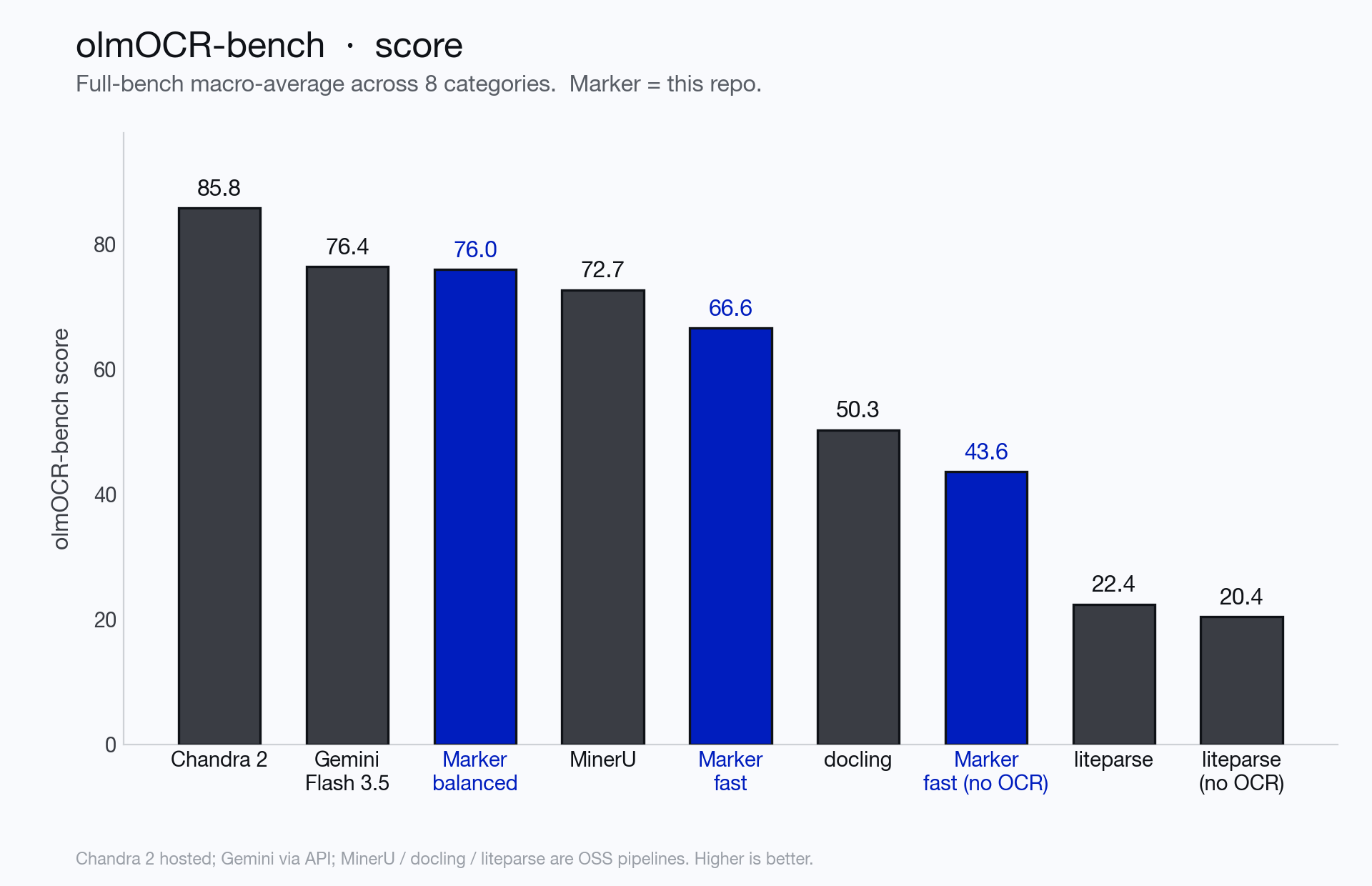
We measure conversion quality with olmocr-bench: 1,403 PDFs with ~8,400 pass/fail unit tests covering math rendering, table structure, reading order, headers/footers, and old scans. The overall score is the macro-average across the 8 categories (matching how olmocr-bench and Chandra report), using the official olmocr-bench checker.
Competitive comparison
Quality vs. throughput on the full bench — up (higher score) and right (faster) is better. Marker (this repo) beats both MinerU and docling on score and throughput at once: balanced matches Gemini/MinerU quality while running ~5× more pages/sec than MinerU, and fast trades a little quality for a big speedup.
| System | Overall | Digital-only | Throughput* |
|---|---|---|---|
| Chandra 2 (hosted) | 85.8 | — | — |
| Gemini Flash 3.5 (API) | 76.4 | 79.1 | — |
| Marker — balanced (GPU) | 76.0 | 83.5 | 2.9 pg/s |
| MinerU — pipeline (GPU) | 72.7 | 83.3 | 0.54 pg/s |
| Marker — fast (GPU) | 66.6 | 71.6 | 7.4 pg/s |
| docling (GPU) | 50.3 | 64.0 | 2.1 pg/s |
| Marker — fast, no OCR (CPU) | 43.6 | 55.8 | 23.7 pg/s |
| liteparse (CPU) | 22.4 | 27.3 | 8.9 pg/s |
| liteparse, no OCR (CPU) | 20.4 | 25.0 | 1721 pg/s |
Chandra 2 is our hosted model (numbers from the Chandra repo); Gemini Flash 3.5 is via API; MinerU / docling / liteparse are OSS pipelines. Digital-only = macro-average over the 6 non-scanned categories (a subset most text-layer tools score higher on).
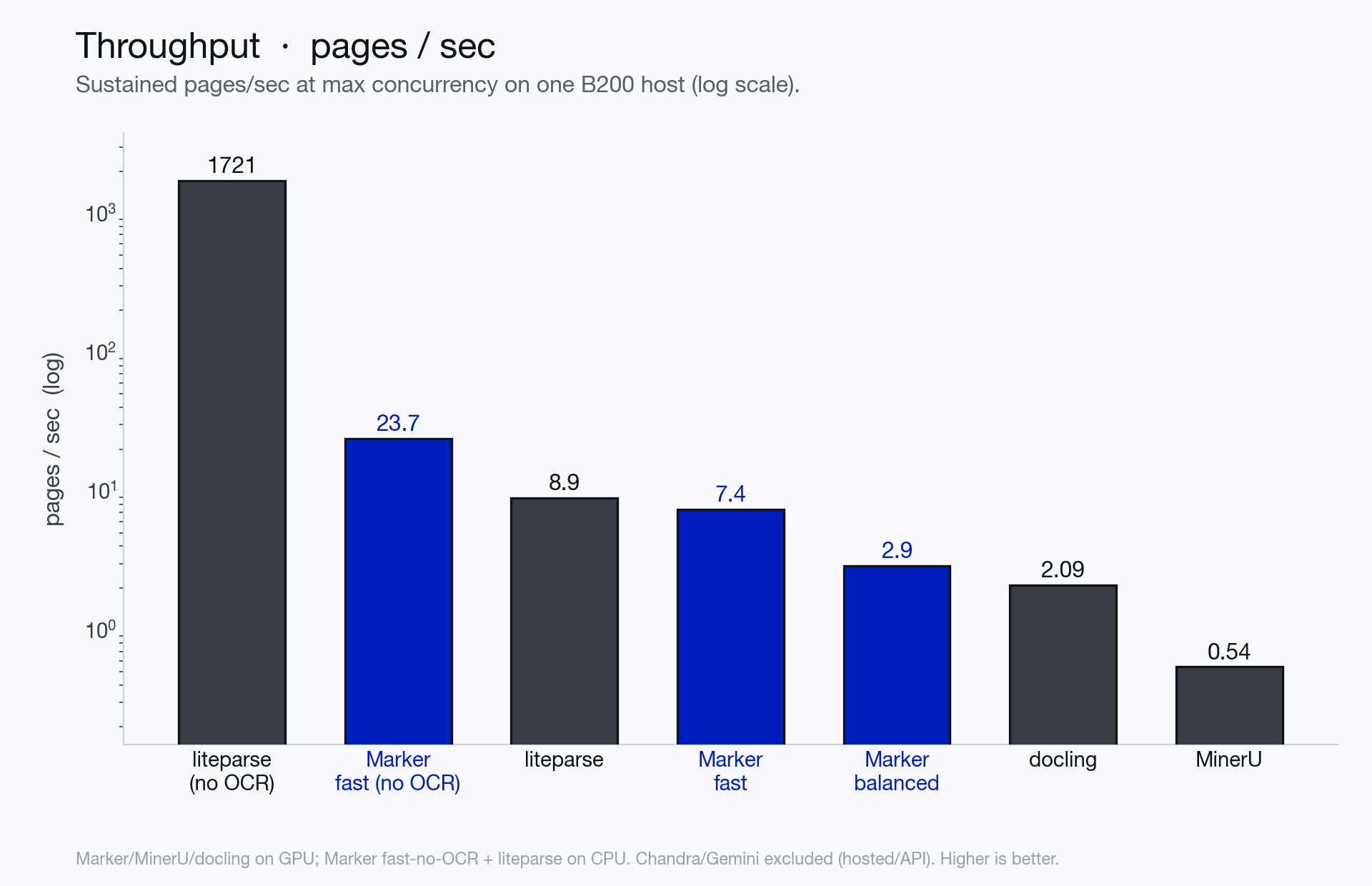
* Throughput is sustained concurrent pages/sec on one B200 host — the deployment-relevant number, not single-stream latency. Each system runs on the GPU at its native parallelism (marker balanced/fast, MinerU, docling), except marker fast-no-OCR and liteparse which are CPU-only by design. Chandra (hosted) and Gemini (API) have no local-hardware throughput. Marker's design — thin CPU workers sharing one inference server (see Throughput) — is what lets a GPU mode like balanced sustain ~2.9 pg/s rather than its ~0.3 pg/s single-stream rate.
The table compares pipeline systems — marker (which reads the PDF text layer and OCRs selectively) against MinerU's pipeline backend and docling (also text-layer + selective OCR). This is the apples-to-apples comparison, and marker balanced leads it on both score and throughput. (docling runs its default pipeline: text layer for born-digital, OCR for image regions; MinerU's own VLM backend scores higher but is a different, full-page-VLM approach.)
If your documents need full-page VLM OCR — math-heavy pages, scans, the highest possible accuracy — that's a different tool than a text-layer pipeline. Reach for Chandra (our document VLM, 85.8 here) or surya (the OCR VLM marker uses under the hood); both have their own olmocr-bench numbers in their repos.
The same numbers as ranked bar charts (score across all systems; throughput for the local ones on a log scale):
Born-digital, CPU-only
If you only have born-digital PDFs and no GPU, the relevant comparison is pure-CPU text extractors. Marker's fast --disable_ocr runs its 20M layout model on CPU and still reads structure (columns, tables, headers), so it scores far higher than a plain text dump — while liteparse (no layout model) is faster but collapses on anything non-linear.
Marker modes, per category
| Category | balanced | fast | no OCR |
|---|---|---|---|
| arXiv math | 83.9 | 23.4 | 0.0 |
| Tables | 73.4 | 69.0 | 46.1 |
| Multi column | 76.6 | 76.0 | 67.0 |
| Headers & footers | 95.9 | 93.2 | 92.8 |
| Long tiny text | 71.3 | 68.3 | 43.2 |
| Old scans math | 63.8 | 59.8 | 0.0 |
| Old scans | 43.2 | 43.2 | 14.3 |
| Baseline | 99.7 | 99.9 | 85.9 |
| Overall | 76.0 | 66.6 | 43.6 |
| Overall (born-digital only) | 83.5 | 71.6 | 55.8 |
Notes:
- Born-digital-only excludes the two scanned splits (old scans, old scans math).
- Fast mode's math is lower by design: it reads equations from the PDF text layer rather than VLM-OCRing them, so LaTeX-level math tests (arXiv math) mostly miss. Use balanced for math-heavy documents.
--disable_ocr(no OCR) never calls the VLM: math scores zero (equations have no text-layer LaTeX), and the raw text layer's garbled math glyphs also cost some baseline points. It's the pure CPU text-layer path.
Throughput
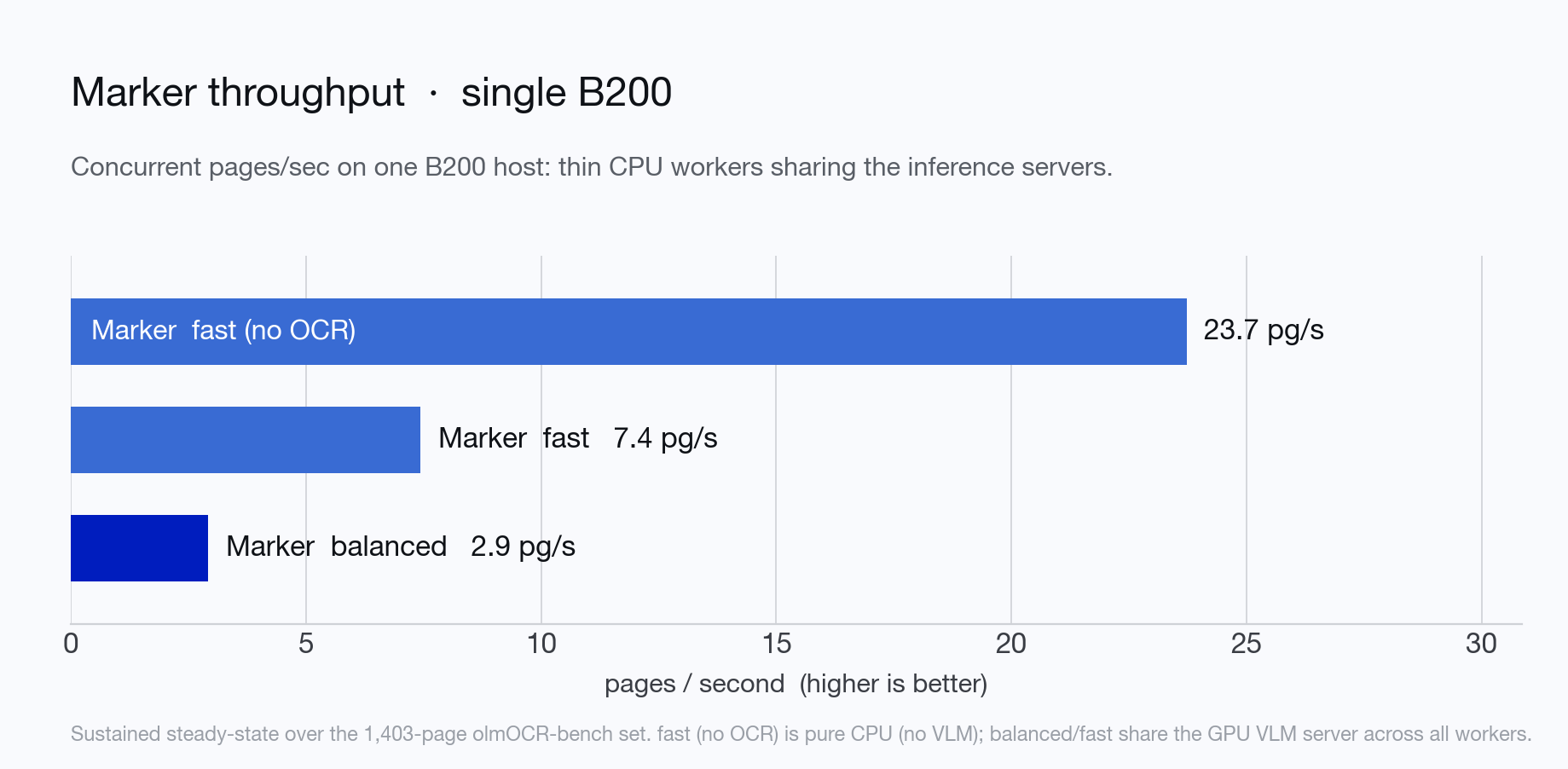
Production throughput comes from concurrency, not per-page latency. Marker runs many thin conversion workers that hold only small CPU models (layout, OCR-error) and share a single inference server; the parent process budgets VLM concurrency across them, so throughput scales with server capacity rather than per-process VRAM.
Sustained steady-state over the 1,403-page olmocr-bench set on one B200:
| Mode | Throughput | Effective latency/page |
|---|---|---|
| fast, no OCR | 23.7 pg/s | 42 ms |
| fast | 7.4 pg/s | 134 ms |
| balanced | 2.9 pg/s | 341 ms |
fast, no OCR is pure CPU (pdftext + a 20M layout model, no VLM) and is CPU-bound — it needs no GPU at all. fast and balanced are GPU-assisted and still leave the GPU with headroom on a single B200 (balanced saturates only ~30% of it — the ceiling is the VLM's decode throughput, so throughput scales further with more/larger inference-server replicas). Measure it on your own hardware with benchmarks/inference.py (see benchmarks/README.md); it reports sustained pages/sec at your chosen concurrency.
Table Conversion
Marker can extract tables from PDFs using marker.converters.table.TableConverter. Table quality is included in the olmocr-bench scores above (the Tables row). Digital tables are reconstructed from the PDF text layer on CPU; scanned tables and low-confidence reconstructions fall back to the VLM. The --use_llm flag can improve difficult tables further (multi-page merges, complex spans).
Running your own benchmarks
Everything above — the olmocr-bench scores and the throughput numbers, for both marker and the competitors — is reproducible with the harness in benchmarks/. In short:
- Clone olmocr-bench and download its bench data (we don't vendor it).
- Run
benchmarks/inference.pyto convert the bench PDFs with marker at real worker concurrency — it writes scoreable per-page markdown and prints sustained pages/sec. - Score the output with olmocr-bench's own checker, then run
benchmarks/summarize.pyto get the Overall (macro-average) and Digital-only numbers.
Competitor runners (liteparse, docling, MinerU), each using the tool's native parallelism, live in benchmarks/competitors/. See benchmarks/README.md for the full step-by-step.
How it works
Marker is a pipeline built around the surya VLM, served by a local inference server, plus small CPU models:
- Extract embedded text with pdftext, in the PDF's reading order
- Detect page layout (a lightweight rf-detr detector in fast mode, the VLM in balanced mode)
- Decide per page whether the embedded text is usable; garbled or scanned pages are OCR'd by the VLM (full-page in balanced, surgically per-block in fast)
- Equations and inline math are recognized by the VLM (pdftext cannot represent math)
- Tables are reconstructed from the text layer with CPU heuristics; low-confidence reconstructions fall back to the VLM
- Optionally use an LLM to improve quality further
- Combine blocks and postprocess complete text
It only calls the VLM where necessary, which improves speed while keeping accuracy.
Limitations
PDF is a tricky format, so marker will not always work perfectly. Here are some known limitations that are on the roadmap to address:
- Very complex layouts, with nested tables and forms, may not work
- Forms may not be rendered well
Note: Passing the --use_llm and --force_ocr flags will mostly solve these issues.
Usage and Deployment Examples
You can always run marker locally, but if you wanted to expose it as an API, we have a few options:
- Our platform API which is powered by
markerandsuryaand is easy to test out - it's free to sign up, and we'll include credits, try it out here - Our painless on-prem solution for commercial use, which you can read about here and gives you privacy guarantees with high throughput inference optimizations.
- Deployment example with Modal that shows you how to deploy and access
markerthrough a web endpoint usingModal. Modal is an AI compute platform that enables developers to deploy and scale models on GPUs in minutes.